
Appearance
Progress Bars & Statistics
Application: https://app.tracki.fi/records
The progress bars in the left sidebar help you track your work progress against your allocated hours.
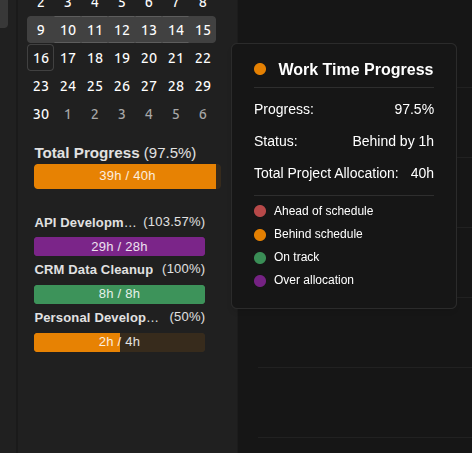
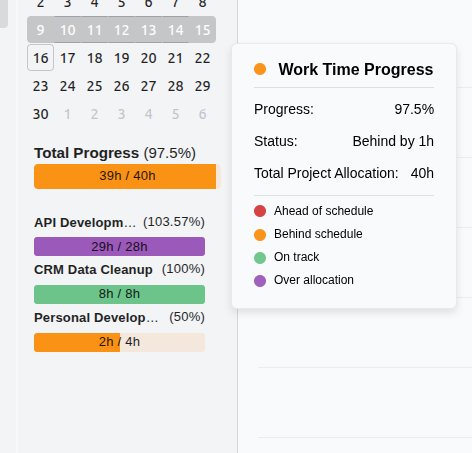
Total Progress Bar
Shows your overall work progress for the selected period (week/month):
- Progress Percentage: Hours logged vs. total allocated hours
- Visual indicator: Bar fills based on completion percentage
Color Coding
| Color | Status | Description |
|---|---|---|
| Green | On Track | Within expected progress based on elapsed time |
| Orange | Behind | Fewer hours logged than expected at this point |
| Red | Ahead | More hours logged than expected (but within allocation) |
| Purple | Over Allocation | Logged more hours than total allocated |
Project Progress Bars
Each project you're allocated to shows its own progress bar:
- Hours logged vs. allocated for that specific project
- Percentage completion displayed
- Same color coding as the total progress bar
- Click on a project to filter the calendar view
Tooltip Information
Hover over any progress bar to see detailed information:
- Progress: Current percentage and hours logged
- Status: Whether you're on track, ahead, or behind
- Expected: Hours you should have logged by now
- Total Allocation: Total hours allocated for the period
- Remaining: Hours left to log
Understanding Status Indicators
On Track
You're within the expected progress based on how much time has passed in the period. For example, if it's mid-month and you've logged half your allocated hours, you're on track.
Behind Schedule
You've logged fewer hours than expected at this point in the period. The orange color alerts you that you may need to catch up.
Ahead of Schedule
You've logged more hours than expected at this point, but still within your total allocation. This is often fine but worth monitoring.
Over Allocation
You've logged more hours than your total allocation for the period. This appears in purple to highlight that you've exceeded your planned hours.
Period Selection
The progress bars update based on your current view:
- Week View: Shows progress for the selected week
- Month View: Shows progress for the selected month
- Year View: Shows aggregated yearly progress
Tips
- Check your progress at the start and end of each day
- Use the color indicators as early warning signs
- Hover for detailed breakdown when planning your work
- Project-level bars help identify which projects need attention
Related Pages
- Records Page - Main records documentation
- User Statistics - Detailed personal statistics