
Appearance
Project User Allocation
Application: https://app.tracki.fi/projects/1/edit-users
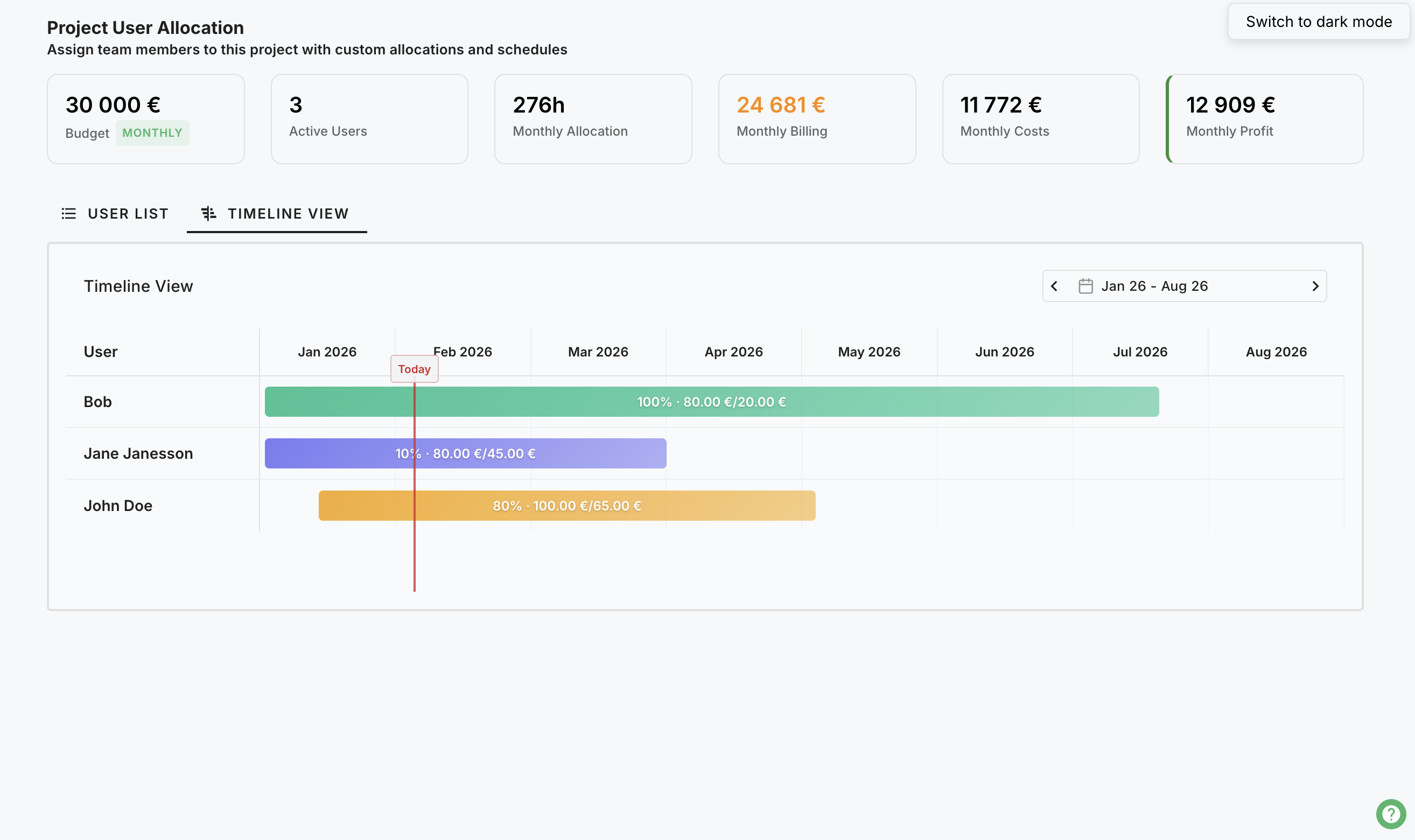
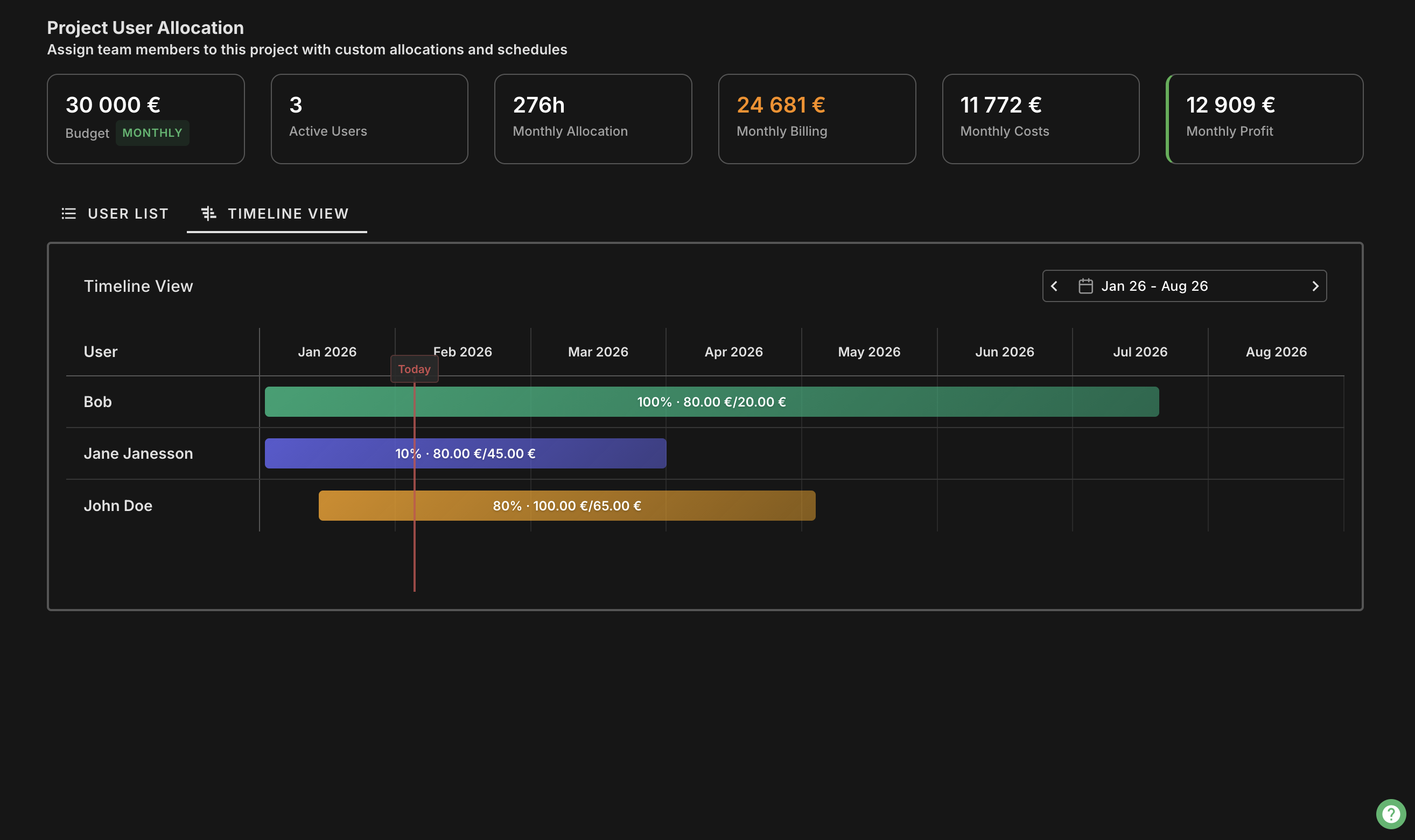
Project Users are team members who have access to a specific project and can log hours.
This page allows project managers and administrators to manage who can work on the project and configure settings for each user.
Project Summary Information
At the top of the page, you can view:
- Project Details: Including budget, number of active users, and total allocation per month
- Financial Summary: Monthly customer billing, user costs, and profit
- Rates Summary: Average customer and self rates
The information card will show a red border if there are financial mismatches between budget and billing or if there's a negative profit.
Managing Project Users
From this page, you can:
- View all users currently assigned to the project
- Add new users to the project
- Edit existing user settings
- Remove users from the project
- View historical assignments by clicking on an arrow on the row to expand it
- Monitor user allocation across all projects with visual progress bars
Key Settings
For each Project User, you can configure:
Date Range
- Start Date: When the user can begin logging hours to the project (required)
- End Date: When the user can no longer log hours to the project (optional)
- End dates in the past are displayed in red
- End dates approaching within 30 days are displayed in orange
Hour Rates
- Self Rate: Hourly cost of the user. If the user is freelancer this is what they will be paid. If employee, you can calculate their hourly rate and set it here. This is used in Analytics calaculations across the app.
- Customer Rate: The rate charged from the customer (disabled for non-billable projects)
Allocation
You can set allocation in two ways using the toggle switch:
- Percentage Mode: Set allocation as a percentage of the user's working hours
- Shows percentage (%) and automatically calculates monthly hours
- Default mode for new assignments
- Hours Mode: Set allocation as specific hours per month
- Shows hours (h) and automatically calculates percentage
- Useful for precise hour planning
The system displays both monthly and weekly hour equivalents regardless of which mode you choose.
Working Hours
- Shows user's weekly working hours and percentage
- Used for calculating allocation conversions between hours and percentages
- This can be edited from users profile page.
User Allocation Progress
Each user has a visual progress bar showing:
- Current allocation: User's total allocation across all other projects
- Additional allocation: The allocation being added/edited for this project
- Total allocation: Combined allocation after changes
- Available allocation: Remaining capacity (100% - total allocation)
Adding a New User
- Click the "Add User" button in the top right
- Select a user from the dropdown (shows email addresses for identification)
- Set the required Start Date
- Choose allocation mode (percentage or hours) using the toggle switch
- Configure the allocation value
- Set the hour rates if applicable
- Click the save icon to add the user to the project
Editing an Existing User
- Click the pencil icon next to the user
- Modify any of the settings inline in the table
- Use the allocation toggle to switch between hours and percentage
- Click the save icon that appears to save your changes
Removing a User
- Click the delete (trash) icon next to the user you want to remove
- Click the checkmark to confirm deletion or the X to cancel
INFO
NOTE that you should not delete old users! Instead best practise is set end date for the users. This way you keep you history intact. Expired users cannot log hours to projects or see the projects.
User History
Each user can have multiple project assignments with different date ranges, rates, and allocations:
- Click on a user row to expand and see their historical assignments
- The main table shows the user's current or upcoming assignment
- The expanded section shows all previous assignments for that user
- You can edit or delete historical records as needed
- Historical records can also be edited using the same allocation toggle functionality
Important Notes
- To change a user's hour rate without affecting historical data, set an end date for their current entry and create a new entry with the updated rate
- For example, if a user's current customer rate is 100€/h and you want to change it to 120€/h, set the current end date to the last day you want to use that hour rate and create a new entry with start time on the following day
- All users assigned to a project will be able to log hours to it within their configured date range
- The system prevents creating overlapping assignments for the same user on the same project
Usefull info
- The allocation hours and percentage helps with resource planning and is visible in allocation reports
- You can click on a user's name to navigate to their user details page
- Customer rates are automatically disabled for non-billable projects
- Default rates are automatically populated when selecting a user
- Users with past end dates will have their settings displayed with the end date in red
Timeline
The timeline view provides a Gantt-style chart to visualize and edit project user allocations over time.
Overview
The timeline view displays project user allocations as horizontal bars on a time axis, making it easy to:
- Visualize when users are allocated to the project
- See allocation overlaps and gaps
- Edit allocation periods by dragging
- Plan resource allocation visually
Accessing the Timeline
- Navigate to a Project Page
- Click on Edit Users or the users card
- Toggle to Timeline View using the view switcher
Editing Allocations
Adjusting Period
- Drag the start edge of a bar to change the allocation start date
- Drag the end edge to change the allocation end date
- Changes are saved automatically
Adjusting Allocation Percentage
- click on a bar to open the allocation editor
- Modify allocation hours, percentage, or rates
- Save changes to update the bar
Visual Indicators
- Today line: A vertical line showing the current date
Tips
- Use the timeline for long-term resource planning
- Compare team member availabilities side by side
- Identify periods where projects may be understaffed
Related Pages
- Project User Management - Detailed allocation settings
- Project Page - Project overview